
Affiliate Disclosure: This post contains affiliate links. If you make a purchase through these links, I may earn a commission at no extra cost to you.
As you have already seen, many posts start with a list of the 10 best plugins you need to install right now.
But not this time: those types of posts ignore the important point that your website is not the same as someone else’s. Your website visitors are different, and your site problems are different as well, so a generic list of plugins will not work for you.
Just as a blogger needs to grow their website, a freelance designer trying to get client bookings requires a different setup. And a small business owner trying to set up to generate leads needs different tools than someone running a WooCommerce store trying to reduce cart abandonment.
 I am going to walk you through how different types of people actually use plugins on WordPress.com. The Best Part here is that now you can install WordPress plugins on your WordPress.com powered website, and plugin access is available on all paid plans.
Start Using Plugins & Grow Your Website Faster Now
By the end of this, you will know which plugins are exactly suitable for your situation and which ones you should ignore completely.
One Thing You Should Do Before Starting
Well, before starting, I would like to share that plugins are tools, not decorations. Many website owners install multiple plugins without realizing that these plugins also slow down their websites. Many bloggers also follow popular figures and install the plugin they use without knowing their own requirements.
First, check your requirements and needs, then install the required plugin.
Now, let’s get into the actual use cases.
Case No 1: The Online Store Owner
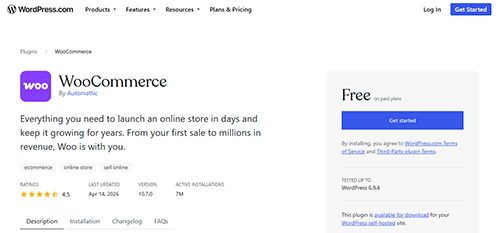 WooCommerce plugin is now available on WordPress.com
This is one of the big changes for all the WordPress.com users who want to set up their own store using the WordPress.com platform.
WooCommerce.com is a widely used platform for building e-commerce stores. Let me share some other plugins that you can also install as an online store owner.
- A Payment Gateway: After installing WooCommerce, it’s time to set up a payment gateway. WooCommerce works with Stripe, PayPal, and many other payment systems available on WordPress.com. Don’t install multiple gateways. Install only the required one.
- A Checkout Optimization Plugin: Cart abandonment is one of the biggest challenges for store owners, as most visitors do not complete the checkout process. To resolve this issue, install a checkout optimization plugin to simplify the checkout process.
- A Product Review Plugin: In an online business, people trust reviews more than the owner. By installing a review plugin on your site, you can highlight verified reviews to convert visitors into customers.
- A Shipping & Order Management Plugin: Once an order is placed by customers, they also want to track their product as well. So you should install a shipping plugin that automatically sends shipping updates and track information, reduces customer service emails, and creates a professional buying experience.
Start Selling Online with WooCommerce Now
Case No 2: The Blogger Who Wants to Grow Traffic
 Suppose you run a blog, write regularly, and publish it on your website. You want more people to find your blog and read what you write.
This sounds simple to most people, but in reality, you need a system to achieve. It. Writing a simple post is just part of the equation. You need to optimize your articles for search engines as well; Google will not rank your article. Also, if your site loads slowly and even your internal structure is not good, then your publishing is getting wasted.
Here is the setup you can do on your WordPress. com-powered blog.
- An SEO Plugin is Not Optional: For ranking your posts in search engines, you must use SEO plugins like Yoast & Rank Math on a WordPress.com powered blog. These plugins will allow you to write meta titles and descriptions for every post. You can even set up XML sitemaps to help Google index your site faster.
- An Image Optimization plugin: If your sites have heavy images, use it to compress them and significantly reduce load time.
- A Caching Plugin is a Must: A caching plugin stores prebuilt versions of your website pages, so pages load faster for every visitor. As you know, Google loves fast websites, and it also uses page speed as a ranking factor. So, using a caching plugin is a win for you and your users.
- An Internal Linking Tool: An internal link connects one post to another and helps keep visitors on your site longer. An internal linking plugin suggests or even automates the internal linking process in the background when you are writing.
After setting up these four plugins on your blog, you are not just writing, and you are building a content system that automatically attracts readers and improves the performance of the blog as well.
Case No 3: The Small Business Owner
 Suppose you are running a local service, a consulting firm, or a small company with a few employees. You don’t need readers like a blogger as we discussed above.
You only care about one thing: your website should generate leads and turn them into business. Without using the below plugins, your website is a professional site, just like a premium brochure, and nothing much.
To generate business from your website, use these recommended plugins.
- A Proper Contact Form Plugin is a Must: WordPress has a default contact form, but you can’t customize it. You should use WPForms or Gravity Forms, as these plugins will give you control over fields, conditional logic, confirmation messages, and where submissions should go. Whenever a person fills out the form, you should receive the message immediately. You also need automatic confirmation, which you can send to them to let them know you received their message. And these plugins will handle all these tasks easily.
- Analytics Integration: Without tracking your visitors, you can’t analyze which service they’re most interested in. Through Analytics integration, you can easily know how many people visit each week, which pages they spend time on, and also where they leave. The Google Analytics plugin will help you to get this data, and it is also FREE and available on the WordPress.com plugin section.
- A Security Plugin: Business websites are often targeted by automated bots, even small ones. A security plugin like Wordfence or JetPack Security will help you monitor your site for threats, limit login attempts to stop brute-force attacks, and even email you when something happens.
With the above-suggested plugin, you can easily convert your digital business card-looking website into a lead magnet for your business and also secure your site.
Turn Visitors Into Paying Customers Now
Case No 4: The Freelancer or Service Provider
 If you are a designer, developer, photographer, consultant, writer, or any other professional who wants to sell their skills and expertise.
Your website’s only job is to get clients for your business. Without the required plugin, you can’t get the message from your clients either.
To get clients from your website, here are some plugins you can install on your WordPress. com-powered website.
- A Form Plugin Connected To Email Marketing: A form plugin, like Contact Form 7 or Gravity Forms, allows your clients to contact you by filling out the required form. And by connecting it with email marketing, you can easily send an automatic confirmation that you have received their message.
- A Portfolio Plugin: As a freelancer, you have to show your previous work to get a new project. By using the portfolio plugin, you can easily show project pages that tell the story behind every piece of work. You can even highlight the case studies that you have worked on.
- A Booking Plugin: If you are those who don’t want to play with email conversation, then you can also install a Booking plugin like Amelia and many others available on WordPress.com. You can also integrate these plugins with Google Calendar to ensure your availability is accurate.
- A Testimonial Plugin: People always trust what other clients say about you far more than what you say about yourself. After installing the testimonial plugin, you can display client reviews and success stories in a structured way.
Using the above-suggested plugins, you can easily showcase your work, build trust, handle scheduling, and keep communication flowing.
Things You Should Not Do:
- Don’t install every available plugin on your site
- Don’t ignore your site speed after installing a plugin
- Don’t use a nulled plugin on your site.
Final Thoughts
WordPress.com now gives you access to a plugin library that transforms your site into a fully functional professional website. As I said earlier, install only the plugins you need, as explained above. What are you waiting for, go and install WordPress.com plugin on your site now.
Start Using Plugins & Grow Your Website Faster Now